
1Get going: trip & crew
A trip is your shared ride. Everyone in the same trip sees each other on the map, chats and talks over the radio.
Start a trip
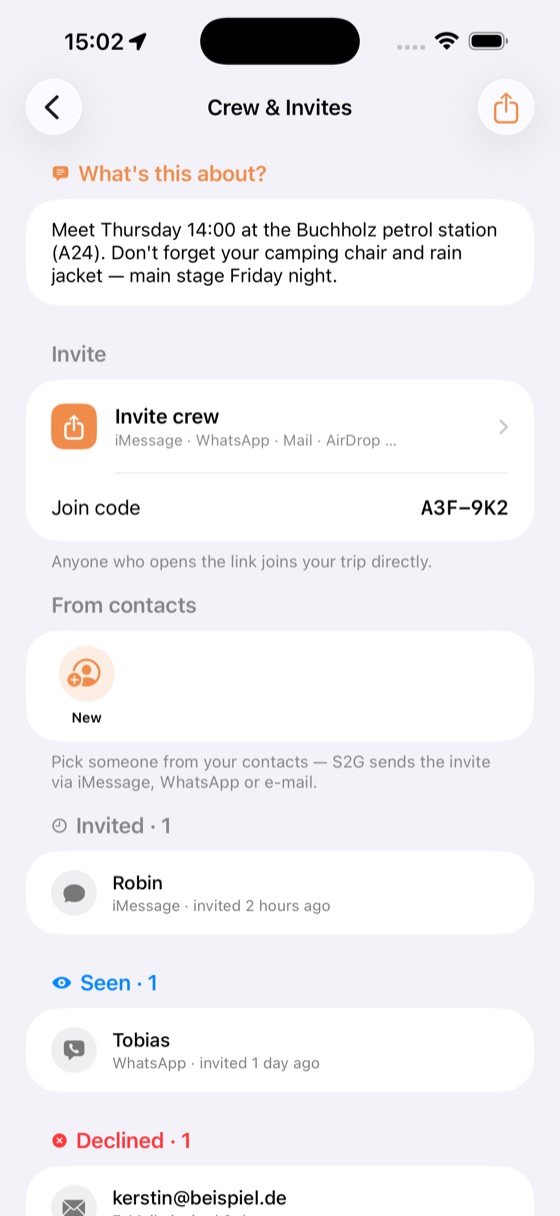
- On the home screen tap “New trip” and give it a name.
- You're automatically the team lead and can invite others.
Join a trip
Three ways — depending on what the team lead shares:
2Map & navigation
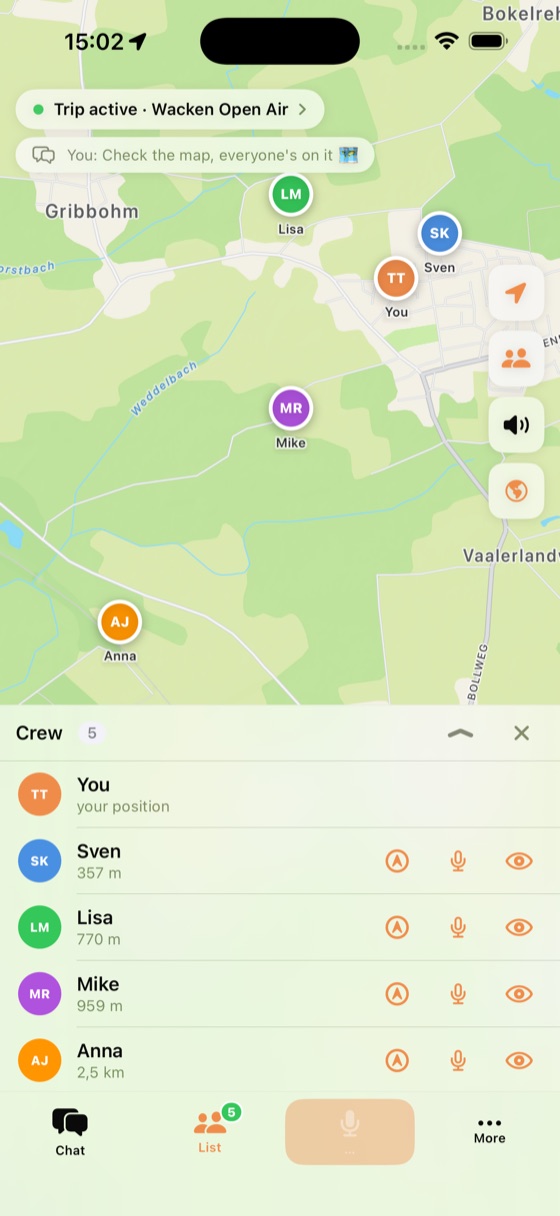
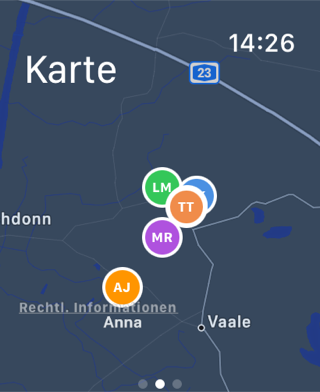
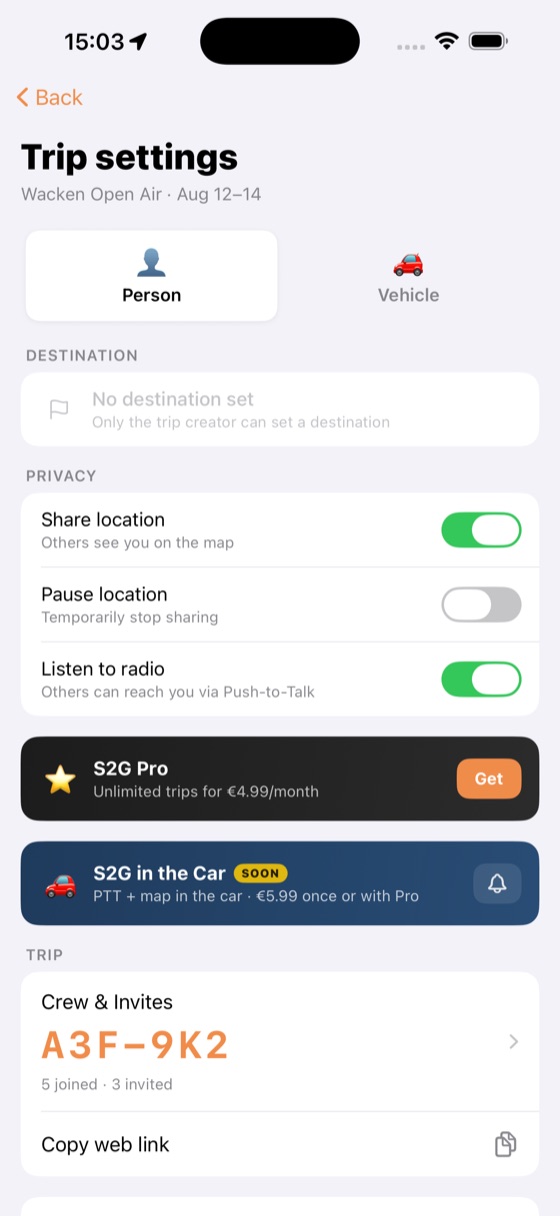
The map shows all crew members live — while you're in an active trip. No location is shared outside of trips.
Destination for the whole crew
As team lead you can set a shared destination (long-press the map or use search). Everyone sees the same meeting point.
Hand off navigation
S2G deliberately has no built-in turn-by-turn navigation — instead it hands the destination or a crew member's position off to your preferred navigation app, which then owns the guidance while S2G stays the radio layer alongside.
Navigation and locating are only as good as the hardware S2G runs on — and the conditions on site. Position and direction (GPS, compass, Ultra Wideband) can vary depending on device, reception, weather, buildings, tunnels, battery level and sensor calibration.
So treat the shown positions and directions as reliable orientation — not centimetre-perfect truth. When in doubt, confirm via radio or chat.
3Chat
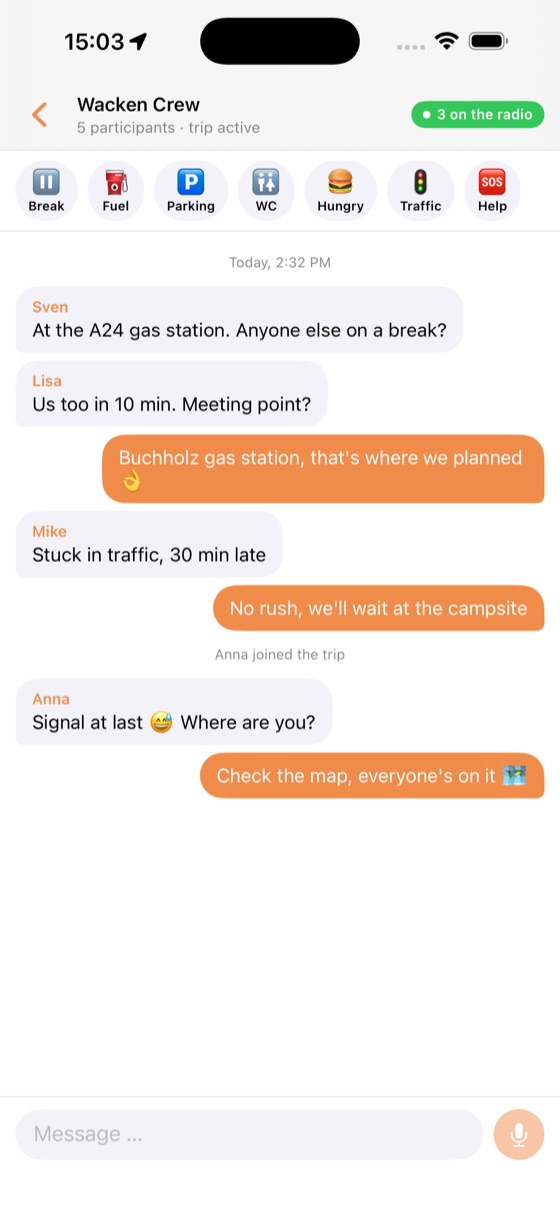
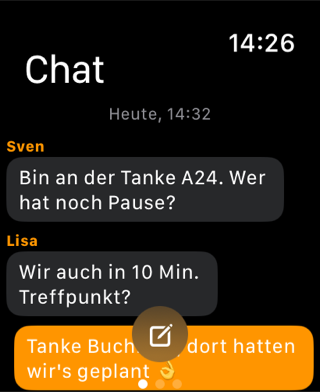
Text messages for the whole crew — handy when talking isn't an option (loud surroundings, a quiet meet-up).
- Quick replies for the road (e.g. “Almost there”, “Fuel stop”).
- Messages also appear on the Apple Watch and can be answered from there.
4Radio (push-to-talk)
Real-time voice radio for the crew — like a walkie-talkie. Press → talk → release.
On-screen radio button
Press and hold the big radio button in the trip to transmit. While you transmit, the whole crew hears you.
Speaker on/off (receiving)
Use the speaker button to mute incoming transmissions when you don't want to hear announcements. Your status (“not listening right now”) is shown to the crew on your avatar — also automatically when your volume drops below ~20%.
5Hardware radio: helmet & Bluetooth
The big one for motorcyclists: talk without looking at the screen — via helmet intercom, handlebar remote or AirPods.
Enable Bluetooth remote control
In Settings → Radio control, turn on “Enable Bluetooth remote control”. Apple's PushToTalk system then takes over the hardware buttons of your paired accessory.
- 1st press = transmission on, 2nd press = off.
- Takes effect from the next trip you join.
- Works with a helmet intercom, a handlebar remote or the AirPods button.
Recommended handlebar remote
The easiest setup is a small Bluetooth media remote on the handlebar: always within reach, usable with gloves, no reaching for the phone.
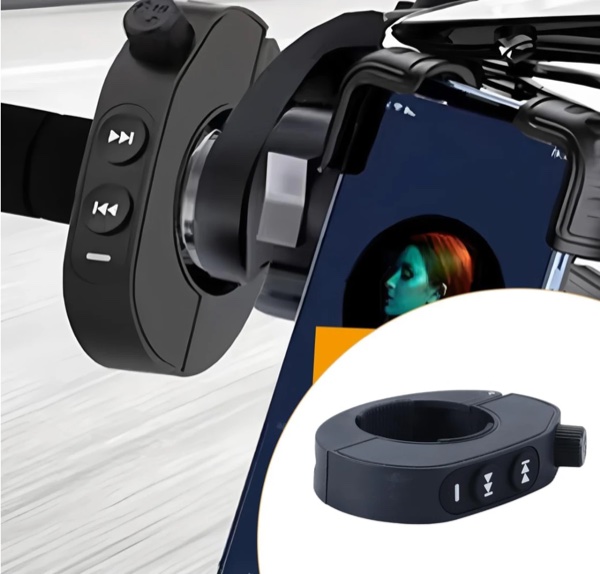
- Pair the remote with your iPhone over Bluetooth.
- In S2G, enable Bluetooth remote control (see above).
- Join a trip — a button press now toggles the radio on/off.
Bluetooth media remotes send their button signals differently — not every one reliably triggers the radio in S2G. We continuously test devices and maintain a compatibility list of models proven to work with S2G.
Android: simple photo/volume remotes
On Android, you can additionally use very simple — often very cheap — photo/shutter remotes that send a volume key (“Volume +”) when pressed. Just enable the corresponding option in the S2G settings; after that, a button press triggers the radio — the cheapest way to talk hands-free.
Action button & Shortcuts
For iPhones with an Action button or via Shortcuts/Flic: S2G provides a “Toggle radio” action and URL triggers to switch the radio on/off without tapping the screen:
- s2g://ptt-toggle — toggle
- s2g://ptt-start — on · s2g://ptt-stop — off
Pocket mode: ride lock for the iPhone
During the ride you usually tuck the iPhone into a pocket. Once you enable Pocket mode in the Settings, a 🌙 moon button appears on the map. A tap on it puts the iPhone into an active but power-saving mode: the screen goes nearly black and is protected against touch gestures — so nothing triggers by accident in your pocket while the crew keeps talking. A subtle clock and the radio status (red dot while transmitting) stay visible. Only a long press (about 1.5 s) anywhere wakes the screen again. The clever part: because the app stays active in the foreground throughout, the Apple Watch gestures (Shake-to-Talk) keep working even while riding.

Glove mode: giant radio button in full screen
When the iPhone is visible on the handlebar or in its mount, Glove mode helps: once enabled in the Settings, a button (✋) appears on the map that opens a full-screen radio view. It has an oversized “push to talk” button you can hit easily with motorcycle gloves — no aiming needed. At the top you see, in large type, who is speaking. The screen stays on so the button is ready at all times.
To leave, there’s a deliberately accident-proof “hold to exit” — a long press (about 1.5 s) with a progress ring, so the bumps of the ride won’t throw you out of the mode.
6Apple Watch
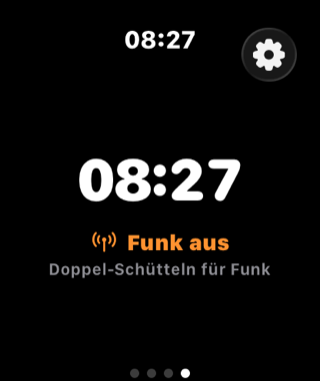
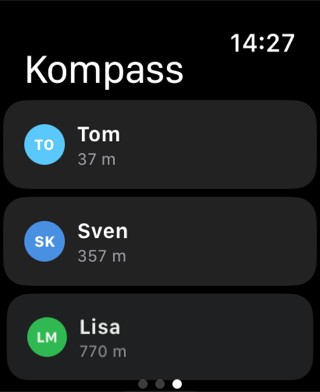
Your crew on your wrist — four pages, swipe left to right:
Shake-to-talk (double shake)
On the radio page you toggle the radio with a firm double-shake of the watch — completely hands-free. It's deliberately a double jolt so road or helmet vibration doesn't trigger it by accident.
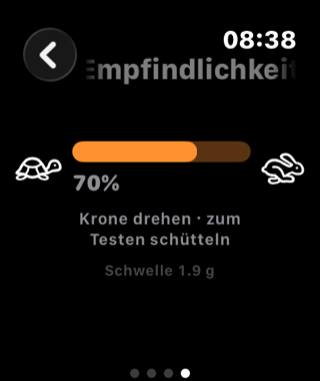
- Sensitivity via the crown: Open the gear → “Sensitivity” and turn the Digital Crown between 🐢 (slow) and 🐇 (sensitive) — and test it right away by shaking (green flash + haptic on detection).
- Tangible feedback: Two distinct vibration patterns for radio on (rising) and off (falling).
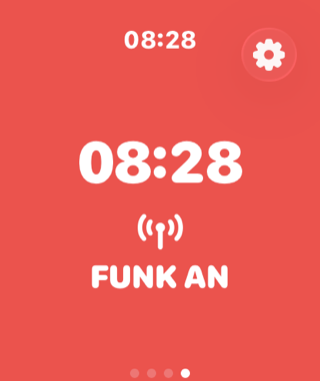
- Glanceable: While you transmit the screen turns fully red with a big “RADIO ON” — recognisable at a glance.
Ride mode (screen stays on)
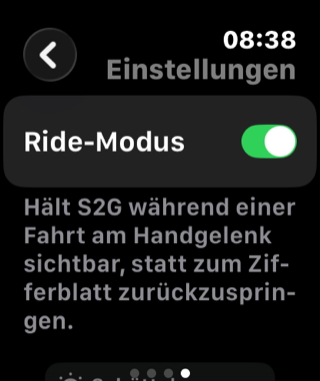
Normally watchOS sends third-party apps back to the watch face after a short while. Ride mode keeps the S2G app visible on your wrist during a trip — including Always-On display, so a quick glance shows the radio screen straight away. Toggle it in the watch settings or on the iPhone under Settings → Apple Watch — both stay in sync.
7Finding crew: compass & UWB
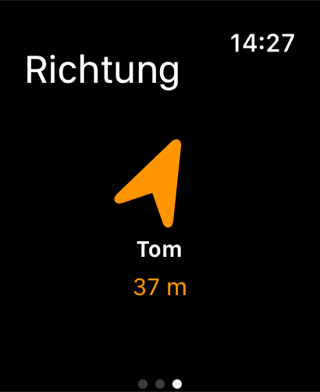
Lost in the festival crowd or at the meeting point? The compass shows you direction and distance to a chosen crew member.
- Precision finding (Ultra Wideband): On compatible iPhones, S2G shows the last few metres down to centimetres — perfect for finding each other in a crowd.
- Also available on the Apple Watch.
8Trip management
- Team lead: Whoever created the trip manages it — set a destination, remove members, end the trip.
- Remove a member: Anyone removed can't rejoin the trip.
- End a trip: Ends the ride for everyone; it then appears dimmed under “Recent trips”.
- Automatic expiry: Trips expire automatically after a while — no location is shared afterwards.
9Settings & languages
- Receive announcements on/off (mute incoming).
- Bluetooth remote control for hardware buttons (see section 5).
- Ride mode for the Apple Watch.
- 8 languages: Deutsch, English, Français, Italiano, Nederlands, Polski, Español, Türkçe — iPhone and Apple Watch.
10Tips for motorcyclists
- Hands on the bars: handlebar remote (section 5) or watch shake (section 6) — both transmit without looking at the display.
- Pair a helmet intercom and enable Bluetooth remote control — the headset's talk button then triggers S2G.
- Happily hand navigation to Apple Maps/Google/Waze — S2G keeps running as the radio alongside, even in the background.
- Turn on ride mode on the watch so the radio screen stays on your wrist.
- Tune the shake sensitivity on the watch for gloves/vibration.